IPTV trials explained: what to check before you commit
The most common reason someone gives up on an IPTV trial is a small setup problem in the first few minutes. A login email that landed in spam. An app field filled in with a typo. A router sitting two rooms away from the TV. None of these are signs the service is wrong for you — they're fixable in under a minute once you know where to look.
This guide explains what an IPTV trial is, what you'll see when you start one, and what to check if something feels off. No technical vocabulary needed.
What IPTV actually means for a household
Television delivered over a broadband connection — that's the core of it. No satellite dish, no cable box, no contract with a phone company. You choose a plan, pay once for it, and your credentials show up by email, typically within a few minutes of the payment going through.
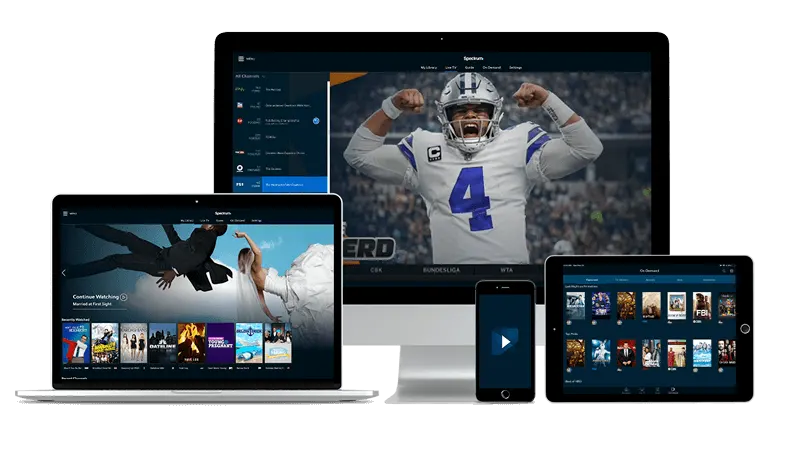
From there, you install a player app on a screen you already own. The service runs on a wide range of hardware: Fire TV Stick, Apple TV, Android-based phones and tablets, smart TVs from Samsung and LG, Windows or Mac computers, and MAG boxes. If your household already has one of those, you can be watching the same evening.
The apps — IPTV Smarters Pro, TiviMate, IBO Player, or the built-in portal on a MAG box — look unfamiliar if you've only ever used a standard cable remote. That's expected. Each one has a search bar, a channel list, and a category filter. Finding those three elements is the whole learning curve.
Check next: think about which screen you'll watch on most often, and confirm it's on the compatible list before you pay.
What happens right after you sign up
Watch your inbox after payment. Your username, password, and server address will arrive by email, often within minutes. If the message hasn't appeared after a short wait, open your spam or junk folder — email filters flag unfamiliar senders routinely, and the credentials end up there more often than anywhere else.
Those three items — username, password, server address — are everything you need to enter into the app. The field names differ slightly between players: IPTV Smarters Pro labels them clearly; TiviMate asks for them under 'Add playlist.' The wording changes but the information is identical.
After you enter the details, the app pulls down your channel list. On the first load this takes a moment, particularly if the list is large. A screen that fills in after a brief pause is normal. If it stays blank for more than a minute, go back and re-read the email: a single transposed character in the server address is usually the cause.
Check next: confirm the server address starts with 'http' and that no letter O has been entered where a zero belongs.
Common questions
- When does the email with my login details arrive?
The email typically arrives within a few minutes of payment. If it hasn't appeared after a short wait, check your spam or junk folder — filters often intercept messages from senders you haven't heard from before.
- Do I need to purchase any special hardware?
If you already own a compatible device — a Fire TV Stick, an Apple TV, a Samsung or LG smart TV, an Android phone, or a Windows or Mac computer — no additional hardware is required. The app installs on what you have.
- Why does the picture freeze even when my internet appears to be working?
Buffering most often traces back to Wi-Fi interference or competing traffic on the home network rather than the stream itself. A wired connection, a switch to the 5 GHz band, or a router restart resolves it in most households.
- What should I test during the trial?
Watch at the times and on the screens you'd actually use day to day — including during evenings when other household members are online. That gives you the most honest picture of how the service performs in your home.
Connection problems look like service problems
Buffering — the picture stuttering or breaking into blocks — ends more trials than any other issue, and in most cases the router is responsible, not the stream. A wired connection between the router and your streaming device removes most of the variables at once. If running a cable isn't practical, switching from the 2.4 GHz Wi-Fi band to 5 GHz often produces a cleaner signal at shorter distances.
Background network activity matters too. A household where someone is on a video call or transferring large files will sometimes see a stream degrade at exactly that moment. Pausing those activities for a couple of minutes is the quickest way to confirm whether the shared connection is the cause.
If your home Wi-Fi is unreliable — common in older buildings with thick walls or dense apartment blocks — test the stream briefly over mobile data. A picture that runs cleanly on cellular but stutters on Wi-Fi points squarely at the router setup rather than the service.
Check next: restart the router, give it a moment to reconnect, then try again. It resolves a surprising number of problems.

Getting around a large channel list
A channel list with a lot of entries looks overwhelming at first glance. The practical move is to ignore the bulk of it and search for three or four things you actually watch. Every major player app includes a search function. Type a partial title and see what appears.
Categories narrow the field quickly. Most lists are grouped by region or genre — sports, movies, news, children's content. For anyone watching on an Android handset, learning the category layout in IPTV Smarters Pro takes only a few minutes and removes most of the scrolling. If you're hunting for a particular genre rather than a specific channel, working through the channel guide for sci-fi series shows the same approach applied to a different category.
Setting up a favorites section early is worth the two minutes it takes. Mark the handful of channels you return to regularly, and you rarely need the full list again.
Check next: does the picture quality match what you expected? Most player apps include a manual quality or resolution setting. If your connection struggles at the highest setting, dropping it one level often removes all buffering.
Using the trial period well
A trial period is a genuine test, not a formality. Use it on the screens and at the times that reflect how you actually watch. A live sports channel during a busy weekend afternoon, a movie on a weeknight when household internet use is higher — these are more revealing than a quick check at midnight.
If something doesn't behave as expected, work through the connection first, then the app settings, then contact support. Most problems resolve at one of those three steps.
One practical advantage of this kind of service: because it runs over any broadband connection, it isn't fixed to a single address. Someone who divides time between cities — or who wants to keep watching while staying elsewhere — can carry it with them in a way that a cable subscription can't match. The notes on using streaming TV away from home cover that situation in more detail.
What each plan includes, and how to pick one, is laid out on the IPTV Streaming Services home page. Payment is once per plan, with no installation fee and no rental charge on top.